> ## Documentation Index
> Fetch the complete documentation index at: https://docs.pdfnoodle.com/llms.txt
> Use this file to discover all available pages before exploring further.
# PDF Styling
> Here's where you'll configure your PDF styling, setting up global configurations such as:
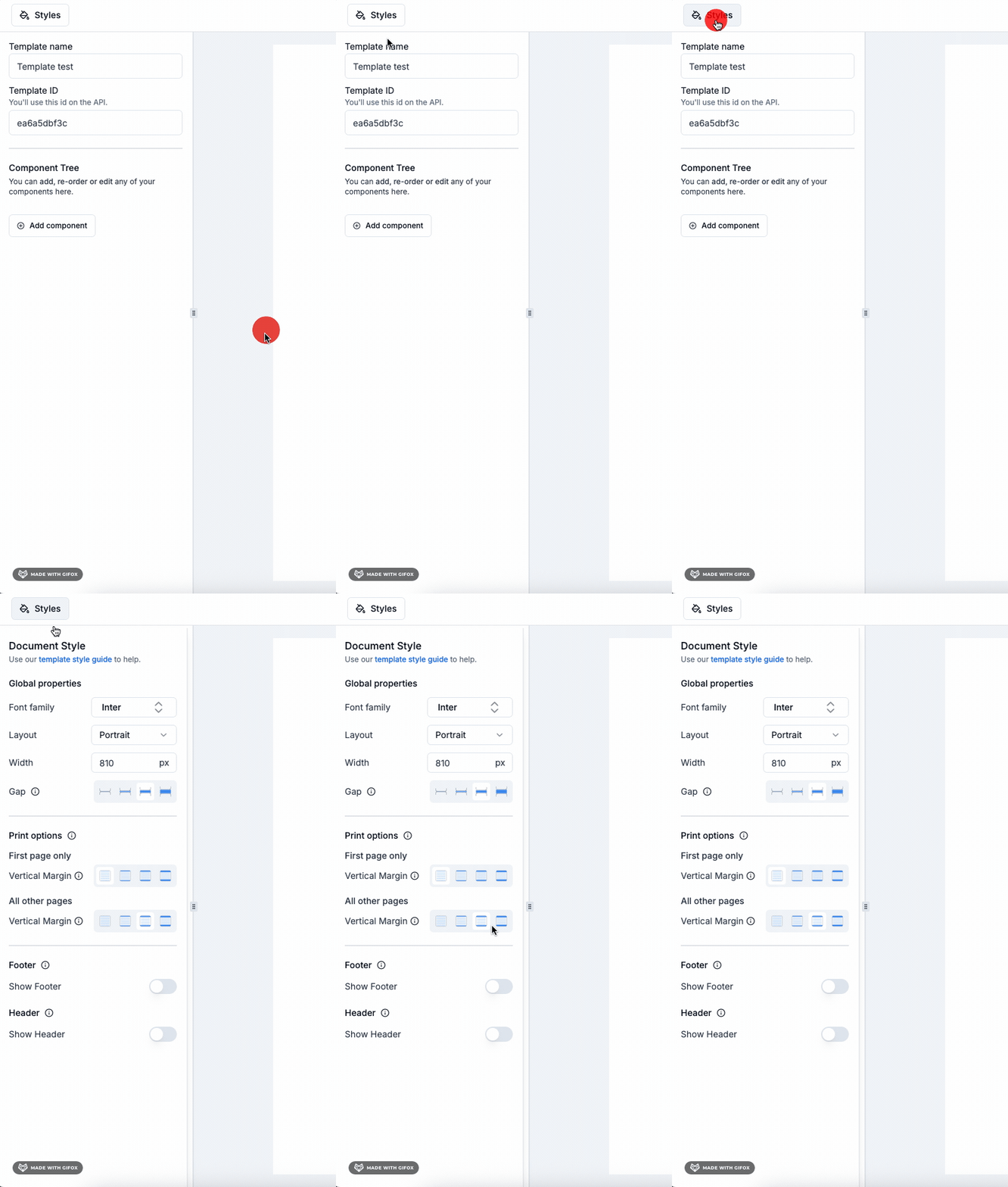 Here's where you'll configure your PDF styling, setting up global configurations such as:
* Font family
* PDF width
* PDF Layout (Portrait or Landscape)
* Gap: The space between components
* Vertical Margin: Separate settings for the first page and subsequent pages
* Custom header on all pages
* Custom footer on all pages
The **PDF height** is automatically calculated based on the A4 page proportion
(1 : 1.414).
### Space convention
At pdf noodle, we standardize all spacing properties so you don’t have to think twice. Our spacing convention is as follows:
* **No space** - 0 px
* **Small space** - 12px
* **Medium space** - 20px
* **Large space** - 40px
### Vertical Margin convention
We differentiate between the vertical margin for the first page and for all other pages. Typically, the first page may feature a header, meaning you might prefer no vertical margin there, while additional pages can benefit from some spacing for page breaks.
Also, note that we only manage vertical margins. Horizontal margins should be adjusted directly within the individual components in your template.
***
### Custom Footer
Here's where you'll configure your PDF styling, setting up global configurations such as:
* Font family
* PDF width
* PDF Layout (Portrait or Landscape)
* Gap: The space between components
* Vertical Margin: Separate settings for the first page and subsequent pages
* Custom header on all pages
* Custom footer on all pages
The **PDF height** is automatically calculated based on the A4 page proportion
(1 : 1.414).
### Space convention
At pdf noodle, we standardize all spacing properties so you don’t have to think twice. Our spacing convention is as follows:
* **No space** - 0 px
* **Small space** - 12px
* **Medium space** - 20px
* **Large space** - 40px
### Vertical Margin convention
We differentiate between the vertical margin for the first page and for all other pages. Typically, the first page may feature a header, meaning you might prefer no vertical margin there, while additional pages can benefit from some spacing for page breaks.
Also, note that we only manage vertical margins. Horizontal margins should be adjusted directly within the individual components in your template.
***
### Custom Footer
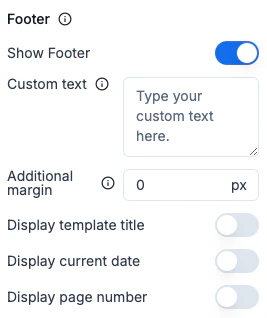 You can choose to insert a custom footer at the bottom of every PDF page generated.
The footer is highly customizable:
* Add plain text or dynamic variables (`{{variable}}`).
* Insert HTML strings and inline styles for richer formatting.
* Use predefined classes to quickly render dynamic info:
* .pageNumber → shows the current page number
* .totalPages → shows the total number of pages
* .date → shows the current date
* .title → shows the template title
Additionally, you can configure the Footer Height. This value reserves vertical space at the bottom of each page to prevent the footer content from overlapping your PDF body. Set it according to the expected height of your footer design.
💡 **Tip:** Passing variables in the payload allows you to display dynamic
data in the footer (e.g., client name, report ID, or any custom field).
The result will be like this:
You can choose to insert a custom footer at the bottom of every PDF page generated.
The footer is highly customizable:
* Add plain text or dynamic variables (`{{variable}}`).
* Insert HTML strings and inline styles for richer formatting.
* Use predefined classes to quickly render dynamic info:
* .pageNumber → shows the current page number
* .totalPages → shows the total number of pages
* .date → shows the current date
* .title → shows the template title
Additionally, you can configure the Footer Height. This value reserves vertical space at the bottom of each page to prevent the footer content from overlapping your PDF body. Set it according to the expected height of your footer design.
💡 **Tip:** Passing variables in the payload allows you to display dynamic
data in the footer (e.g., client name, report ID, or any custom field).
The result will be like this:
 ### Custom Header
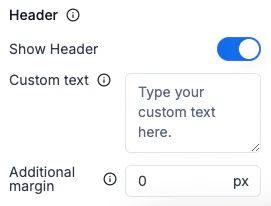 Similarly, you can add a custom header at the top of every PDF page.
The header supports the same options as the footer:
* Add static or dynamic text with variables (`{{variable}}`).
* Insert HTML strings and styles for full design flexibility.
* Use the predefined classes for auto-filled elements:
* .pageNumber
* .totalPages
* .date
* .title
The Header Height setting reserves vertical space at the top of the page so your header doesn’t overlap with the document content. Adjust it based on the size of your header elements.
**💡 Tip:** Just like the footer, you can pass variables in the payload to
render dynamic information (like user names, project titles, or branding
details) in your header.
If you didn’t find what you were looking for regarding the PDF style, feel
free to contact us at [support@pdfnoodle.com](mailto:support@pdfnoodle.com).
We’ll get back to you as quickly as possible!
Similarly, you can add a custom header at the top of every PDF page.
The header supports the same options as the footer:
* Add static or dynamic text with variables (`{{variable}}`).
* Insert HTML strings and styles for full design flexibility.
* Use the predefined classes for auto-filled elements:
* .pageNumber
* .totalPages
* .date
* .title
The Header Height setting reserves vertical space at the top of the page so your header doesn’t overlap with the document content. Adjust it based on the size of your header elements.
**💡 Tip:** Just like the footer, you can pass variables in the payload to
render dynamic information (like user names, project titles, or branding
details) in your header.
If you didn’t find what you were looking for regarding the PDF style, feel
free to contact us at [support@pdfnoodle.com](mailto:support@pdfnoodle.com).
We’ll get back to you as quickly as possible!