> ## Documentation Index
> Fetch the complete documentation index at: https://docs.pdfnoodle.com/llms.txt
> Use this file to discover all available pages before exploring further.
# Page Break
> The Page Break component ensures precise control over how your document flows during PDF generation. It automatically forces a page break (page-break-before: always), so you can decide exactly where a new page should begin. This is especially useful for separating sections like chapters, invoices, or grouped content in your document.
 ***
### How It Works
When included in your template, the Page Break component applies a CSS rule (*page-break-before: always*), ensuring that everything after it starts on a new page.
**Hint:** Use this component anytime you want to control the exact pagination
of your generated PDF, rather than relying only on automatic page flow.
### Conditional Rendering
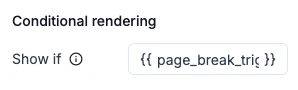
You can control the visibility of the Page Break using the Conditional rendering option:
* Add a variable inside the Show if field.
* If the variable is present in your payload, the Page Break will appear.
* If the variable is absent, the Page Break won’t render.
#### Example:
***
### How It Works
When included in your template, the Page Break component applies a CSS rule (*page-break-before: always*), ensuring that everything after it starts on a new page.
**Hint:** Use this component anytime you want to control the exact pagination
of your generated PDF, rather than relying only on automatic page flow.
### Conditional Rendering
You can control the visibility of the Page Break using the Conditional rendering option:
* Add a variable inside the Show if field.
* If the variable is present in your payload, the Page Break will appear.
* If the variable is absent, the Page Break won’t render.
#### Example:
 ```
{
"page_break_trigger": true
}
```
If you add `{{ page_break_trigger }}` to the “Show if” field, the page break will only apply when this variable exists.
```
{
"page_break_trigger": true
}
```
If you add `{{ page_break_trigger }}` to the “Show if” field, the page break will only apply when this variable exists.