> ## Documentation Index
> Fetch the complete documentation index at: https://docs.pdfnoodle.com/llms.txt
> Use this file to discover all available pages before exploring further.
# Icon
> Our Icon Component lets you easily pick and insert icons from our integrated [**Lucide Icons**](https://lucide.dev/) **library.**
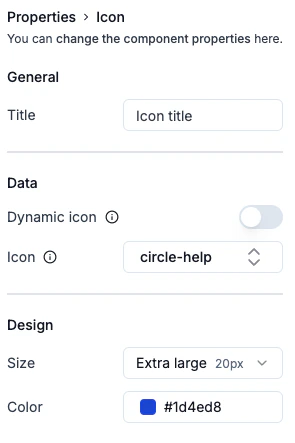 ### Icon Size Convention
To keep your templates consistent, we’ve standardized icon sizes:
* **Extra small:** 10px
* **Small:** 12px
* **Medium:** 14px
* **Large:** 16px
* **Extra large:** 20px
### Send icon dynamically
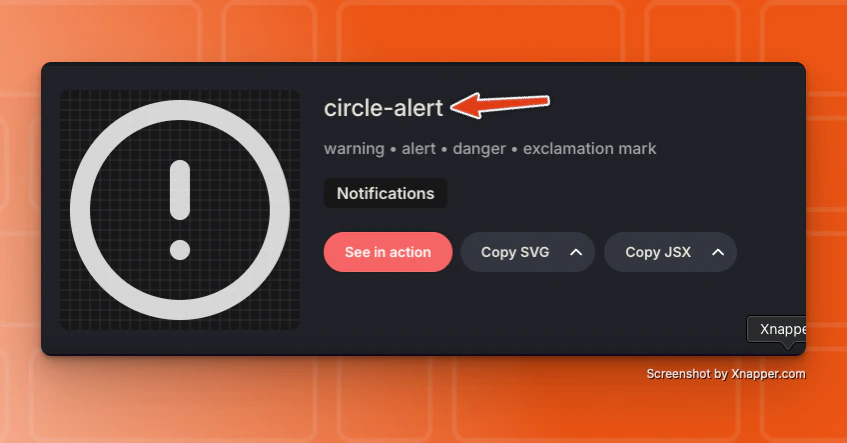
You can also set your icons dynamically by using variables. **We automatically generate the variable name based on your component title**. Just provide the icon name in kebab-case format (e.g., circle-alert) in your PDF payload.
### Icon Size Convention
To keep your templates consistent, we’ve standardized icon sizes:
* **Extra small:** 10px
* **Small:** 12px
* **Medium:** 14px
* **Large:** 16px
* **Extra large:** 20px
### Send icon dynamically
You can also set your icons dynamically by using variables. **We automatically generate the variable name based on your component title**. Just provide the icon name in kebab-case format (e.g., circle-alert) in your PDF payload.
 Its mandatory to choose a fallback icon in case you didn't send an icon as a
payload.
Its mandatory to choose a fallback icon in case you didn't send an icon as a
payload.