> ## Documentation Index
> Fetch the complete documentation index at: https://docs.pdfnoodle.com/llms.txt
> Use this file to discover all available pages before exploring further.
# HTML
> Our HTML component was designed so you have the maximum flexibility to build your own components on the exact way you want. To have a better view on the code editor and the component itself, you can double click on the preview canvas.
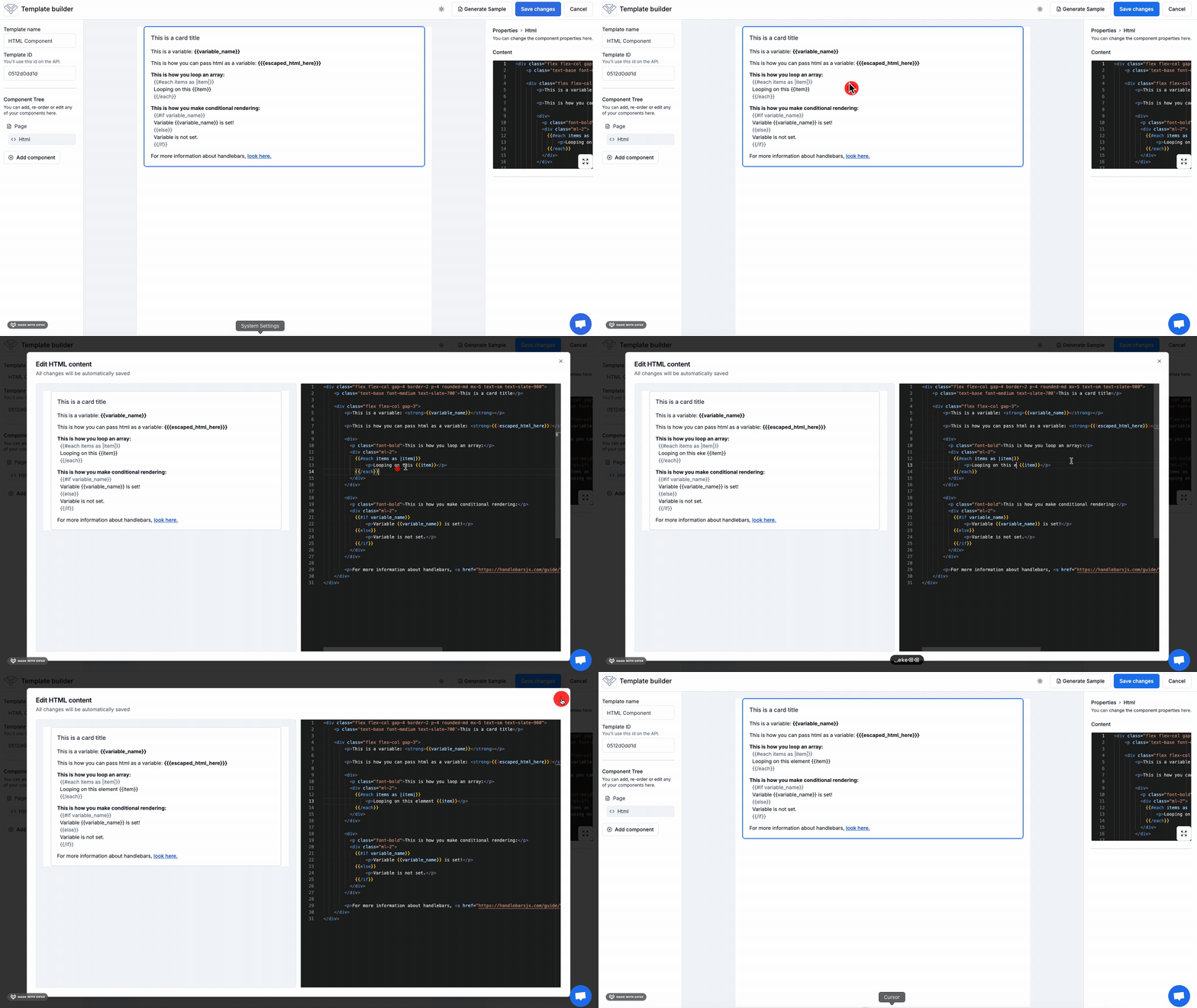 To enhance your productivity, we have native integration with [**TailwindCSS**](https://tailwindcss.com).
Let our AI Agent do the heavy lifting for you and create the HTML component
with a simple text prompt. Check out our [**AI Generated
Section**](https://docs.pdforge.com/knowledge-base/components/ai-generated) to
learn more about it.
### Handlebars integration
We use [handlebars](https://handlebarsjs.com/) as our templating engine, so you also have all the flexibility that handlebars delivers inside your html components.Here's some examples:
#### Variables
You can differentiate between dynamic variables and static text in your templates. Here’s how it works:
• Simple Variable: Enclose your text in double curly brackets: `{{ }}`.
• HTML Variable: Enclose your text in triple curly brackets: `{{{ }}}` to include HTML tags.
To enhance your productivity, we have native integration with [**TailwindCSS**](https://tailwindcss.com).
Let our AI Agent do the heavy lifting for you and create the HTML component
with a simple text prompt. Check out our [**AI Generated
Section**](https://docs.pdforge.com/knowledge-base/components/ai-generated) to
learn more about it.
### Handlebars integration
We use [handlebars](https://handlebarsjs.com/) as our templating engine, so you also have all the flexibility that handlebars delivers inside your html components.Here's some examples:
#### Variables
You can differentiate between dynamic variables and static text in your templates. Here’s how it works:
• Simple Variable: Enclose your text in double curly brackets: `{{ }}`.
• HTML Variable: Enclose your text in triple curly brackets: `{{{ }}}` to include HTML tags.
#### Conditional Rendering
On handlebars, you can use `if`, `else`, `unless` syntax to conditionally render a block of code.
If you want to only render a block when a variable is sent:
```
{{#if variable_name}}
// conditionally rendered html content here
{{/if}}
```
If you want to conditionally render with a fallback:
```
{{#if variable_name}}
// variable_name rendered html content here
{{else}}
// fallback html content here
{{/if}}
```
You can also use the alternative to NOT render a block when a variable is sent:
```
{{#unless variable_name}}
// conditionally rendered html content here if variable not sent
{{/unless}}
```
#### Loops
On handlebars, you can either **loop through arrays or objects**.
Heres how to loop through an **array of strings**:
```
{{#each array_of_strings}}
{{this}}
{{/each}}
```
Heres how to loop through an **array of objects**:
```
{{#each array_of_objects as |object|}}
{{object.id}}
{{object.name}}
{{/each}}
```
**Hint:** When you loop through an array, you have access to this variable `{{@index}}`, which returns the index of the array item.
Heres how to loop through an **object**:
```
{{#each array_of_strings}}
{{this}}
{{/each}}
```
**Hint:** When you loop through an object, you have access to this variable `{{@key}}`, which returns the key of the looped object.
Heres how to loop through an a **nested array of objects**:
Array of Objects Example:
```json theme={null}
[
{
"id": "item-id",
"results": [
{
"id": "result-id",
"name": "result-name"
}
]
]
```
The syntax would be:
```
{{#each nested_array_of_objects as |object|}}
{{object.id}}
{{#each object.results as |result|}}
- {{result.id}} - {{result.name}}
{{/each}}
{{/each}}
```
To see more handlebars functions, you can check out their [documentation
here](https://handlebarsjs.com/guide/#evaluation-context).
### How to use Icons on your HTML component
We also have a native integation with [**Lucide Icons**](https://lucide.dev/).
You can use them on your HTML component with the following syntax:
```html theme={null}
```
**You won't be able to see the Icon on the preview canvas yet**, but if you click on "Generate sample", you'll be able to see the icon.
**Hint:** You can set your icon to `data-lucice="{{ icon }}"` to pass the icon
as a variable from the payload.
If you didn’t find what you were looking for regarding the Page Component,
feel free to contact us at
[support@pdfnoodle.com](mailto:support@pdfnoodle.com). We’ll get back to you
as quickly as possible!