> ## Documentation Index
> Fetch the complete documentation index at: https://docs.pdfnoodle.com/llms.txt
> Use this file to discover all available pages before exploring further.
# Divider
> The Divider component is a simple but effective way to visually separate sections of your document. It helps improve readability by clearly marking boundaries between content blocks in your PDF.
### Styling Options
You can customize the divider’s appearance by choosing one of the following styles:
* Solid – a clean, continuous line.
* Dashed – spaced dashes, for lighter separation.
* Dotted – a dotted line, subtle and minimal.
* Double – two parallel lines for emphasis.
**You can't change the divider color yet**. If that's something that you'd
like, just send us a message at
[support@pdfnoodle.com](mailto:support@pdfnoodle.com) and we'll implement that
for you.
### Conditional Rendering
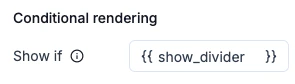
Although not commonly needed, you can also use the Show if field to conditionally render the Divider. If the variable is present in the payload, the Divider will appear; if not, it will be hidden.
**Example:**
```
{
"show_divider": true
}
```
When using `{{ show_divider }}`, the divider will only render if the variable is passed.
💡**Tip:** Use dividers sparingly to avoid clutter—stick to separating major
content sections for the best visual balance.